
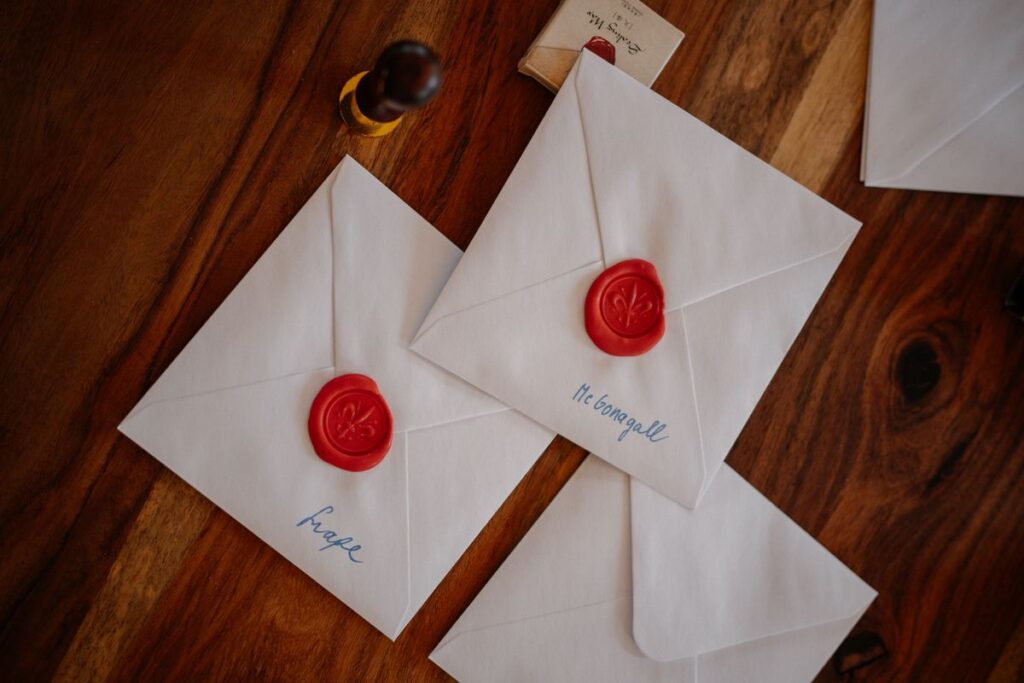
A normal email is a postcard. It travels through several servers on its way, and anyone who handles it along the way can read it, starting with your email provider. Encryption puts that postcard into a sealed envelope that only the recipient can open.
It works with a pair of keys. Your public key is a lock you can hand out to anyone. Your private key stays with you and opens whatever was locked for you. To write to someone, you lock the message with their public key, so both sides need to be set up. One honest limit: the subject line and the addresses of sender and recipient usually stay visible.
Three options cover most people, and we have tested all of them:
| Option | Windows | Android | iPhone | Keep your address | Effort |
|---|---|---|---|---|---|
| Proton Mail | Yes | Yes | Yes | Yes, with a paid plan and your own domain | Easy |
| Thunderbird | Yes | Yes, with OpenKeychain | Not yet | Yes | Medium |
| Outlook with plugin | Yes, classic Outlook | No | No | Yes | Harder |
Proton Mail, the easiest way
Proton Mail encrypts automatically between Proton users. There are no keys to manage. To write to someone outside Proton, send a password-protected email: they get a link, enter the password you agreed on and can reply securely. This works on free accounts too. Agree on the password by phone or in a messenger, never by email. If your contact already uses PGP, import their public key and Proton encrypts directly to them.
If you want to keep your own address, any paid plan lets you use your own domain. People keep writing to you@yourdomain.com while the mailbox lives at Proton. It works in any browser, and there are apps for Windows, Android and iPhone.
Thunderbird for full control
Thunderbird is free, open source and works with your current provider, whether that is Gmail or something else. We tested it on Linux and Android. On the desktop, add your account, open Account Settings, choose End-to-End Encryption and create a new OpenPGP key. Publish your public key with one click. To write to someone, import their public key and press Encrypt before sending. Thunderbird warns you if a recipient’s key is missing.
On Android, pair the Thunderbird app with the free OpenKeychain app, which holds your keys. Mozilla has a short guide for the setup. Thunderbird for iPhone is still in development.
Outlook needs a plugin
Outlook cannot do PGP on its own. On Windows, the free Gpg4win package includes GpgOL, an add-in for classic Outlook that adds an Encrypt button, and that is the setup we tested. The new Outlook has its own add-in, which was still labelled experimental in 2026. Outlook on mobile offers no PGP at all. If you already live in Outlook, this is workable. Otherwise, choose one of the other two options.
Encrypted email on iPhone
Apple Mail does not support PGP, so you need another app. The Proton Mail app is the simplest route. If you want to keep your current provider, we tested Canary Mail, which works with most providers. PGP is part of its paid Pro+ plan, around $100 a year at the time of writing. The app is closed source and has optional AI features.
If you use Gmail, FlowCrypt is another option. We have not tested it ourselves, but All Things Secured walks through it in this video. There are other solutions out there that we have not tested either.
Whichever route you choose, start with a test. Exchange keys with a friend, send a message and look for the lock icon. For most people, Proton Mail is the easiest start. If you want to keep your current provider, Thunderbird gives you full control. Want to learn more or need help setting this up? Get in touch.
Key Takeaways
- A normal email is a postcard, and encryption is the sealed envelope.
- Proton Mail is the easiest start, and it works with your own domain on a paid plan.
- Thunderbird keeps your current provider and gives you full control.
- Outlook works with a plugin on Windows only, and iPhone users need Proton Mail or Canary Mail.
Photo: Raymond Petrik via Pexels